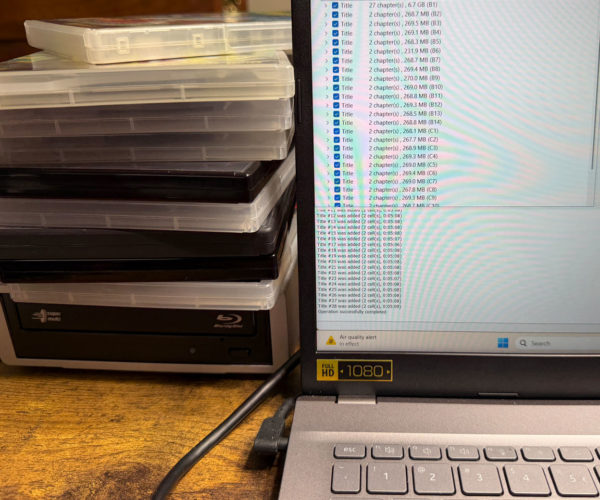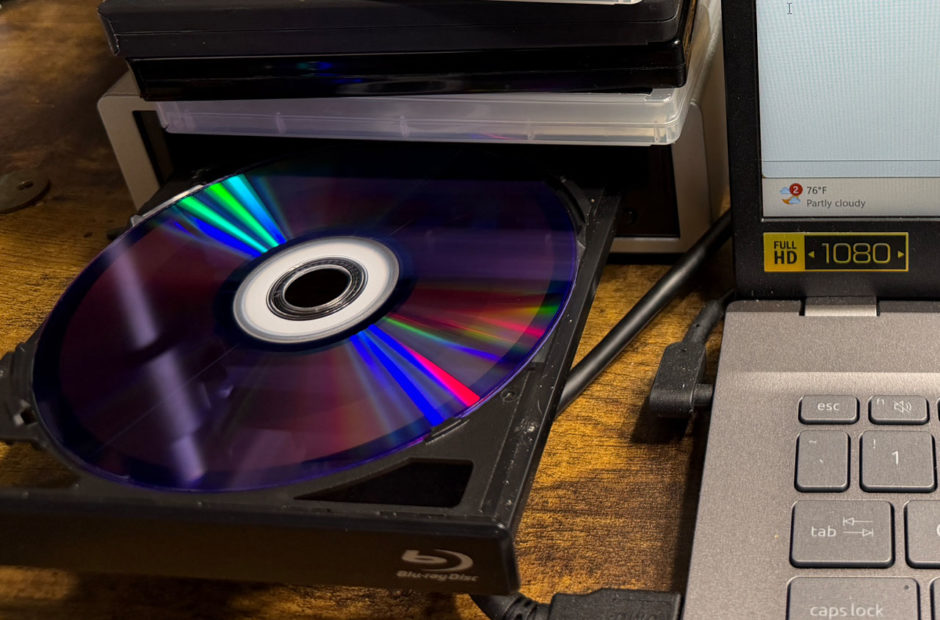
Digitizing standard DVDs is a great way to start building a personal media library, but if you want to truly replicate a premium home theater experience, you need to step up to high definition. For film enthusiasts and media collectors, learning how to rip Blu-rays for a Plex server is the ultimate goal. Blu-ray discs offer incredibly crisp 1080p video and uncompressed surround sound that streaming services simply cannot match.
However, moving from standard definition to high definition introduces a few new hurdles. The files are massive, the hardware requirements are slightly different, and the compression choices you make will directly impact how much hard drive space you need.
The Plex Server Series
Catch up on our complete guide to taking back your media collection and building the ultimate home streaming setup.
Why Ripping Blu-rays Is Different from DVDs
The core difference between a DVD and a Blu-ray is the sheer amount of data they hold. A standard DVD usually contains about 4 to 8 gigabytes of information. A standard 1080p Blu-ray can hold up to 50 gigabytes of data. If you are stepping up to 4K UHD Blu-rays, you are looking at up to 100 gigabytes per disc.
This massive jump in data means the extraction process takes longer. It also means you need to be much more strategic about how you store these files, as your hard drives will fill up incredibly fast.
The Hardware and Software You Need
To rip Blu-rays for a Plex server, you will use the exact same software we covered in our DVD guide. You need MakeMKV to extract the raw video file and HandBrake if you decide to compress it.
The biggest change is the physical drive. A standard DVD drive cannot read a Blu-ray disc. You will need to purchase a dedicated Blu-ray drive. If you want to future-proof your setup, look for a “LibreDrive friendly” Blu-ray drive. These specific drives can have their internal firmware flashed, allowing them to read standard 1080p Blu-rays as well as modern 4K UHD discs.
Storage Size and Quality Tradeoffs
When you use MakeMKV to pull a movie off a 1080p Blu-ray, you will end up with a raw MKV file that is typically between 25 and 40 gigabytes. This is where media archivists have to make a choice.
Option 1: Keep the Raw File
If you have an incredible home theater setup with a massive OLED television and a premium surround sound system, you might want to keep that massive 40-gigabyte file exactly as it is. You get perfect, uncompressed audio and video. The tradeoff is that you will need to buy multiple high-capacity hard drives to store your collection.
Option 2: Compress with HandBrake
If you are watching movies on an iPad, a laptop, or a standard living room television, keeping a 40-gigabyte file is massive overkill. You can load that raw MKV file into HandBrake and compress it down to a 5-to-8 gigabyte MP4 file. You preserve the 1080p resolution, but you save massive amounts of digital storage space. For the vast majority of users, a high-quality HandBrake compression looks completely identical to the original disc.
Building Your Ultimate Archive
Handling Blu-rays requires a bit more patience and a lot more digital storage, but the visual payoff is entirely worth it. Once you experience your favorite films in crisp, uncompressed high definition, you will never want to go back to a pixelated streaming service.
While video gets all the attention, a true media server can handle much more. Next up in our series, we will branch out and look at how to digitize your physical music collection by ripping CDs.