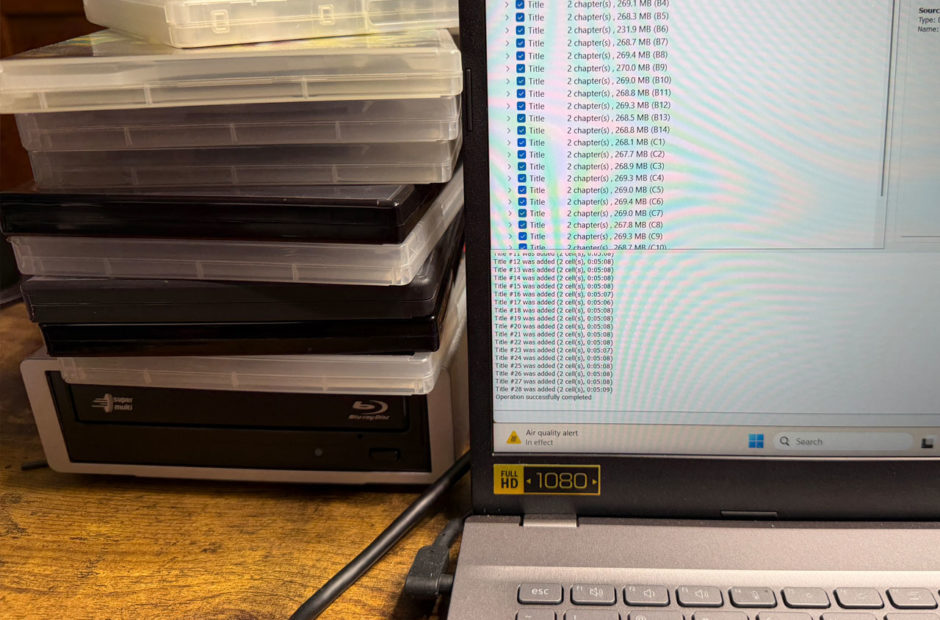
Physical media is making a massive comeback. As streaming services continue to hike their prices and quietly delete content from their platforms, building a personal digital library is the best way to preserve your favorite movies and television shows. If you are dusting off your old disc collection, learning how to rip DVDs for a Plex server is a fundamental skill you need to master.
Ripping a disc is simply the process of extracting the video data from physical plastic and turning it into a digital file that you can stream anywhere in your house. The process might sound incredibly technical, but it is actually quite simple once you understand the basic workflow. All you need is your computer, a basic DVD drive, and a couple of free software programs.
The Plex Server Series
Catch up on our complete guide to taking back your media collection and building the ultimate home streaming setup.
A Quick Note on Legality
Before we dive into the software, we should briefly touch on the legal side of things. Copyright laws vary wildly depending on where you live. In many places, bypassing the digital rights management copy protection on a commercial disc is technically a gray area. However, most digital media collectors operate under the concept of fair use and format shifting. The general unwritten rule is that as long as you own the physical disc and are only creating a digital backup for your own personal home viewing, you are largely safe. You should never upload these files to the internet or share them publicly. Be sure to check the laws in your region before you do anything, however.
The Software You Need to Rip DVDs for a Plex Server
To successfully rip DVDs for a Plex server, you are going to need two completely free, open-source pieces of software. The first is MakeMKV, and the second is HandBrake. They each serve a very distinct and important purpose in the digitization process.
Step 1: Extracting the Video with MakeMKV
MakeMKV is the heavy lifter. When you put a DVD into your disc drive, MakeMKV reads it and extracts the raw video, audio, and subtitle files. It packages all of this into a single MKV file.
The beauty of MakeMKV is that it makes a perfect, one-to-one digital copy of the movie on your disc without losing a single pixel of quality. The downside is that this raw file will be very large. A standard DVD movie ripped with MakeMKV will take up anywhere from 4 to 8 gigabytes of space on your hard drive.
Step 2: Compressing the File with HandBrake
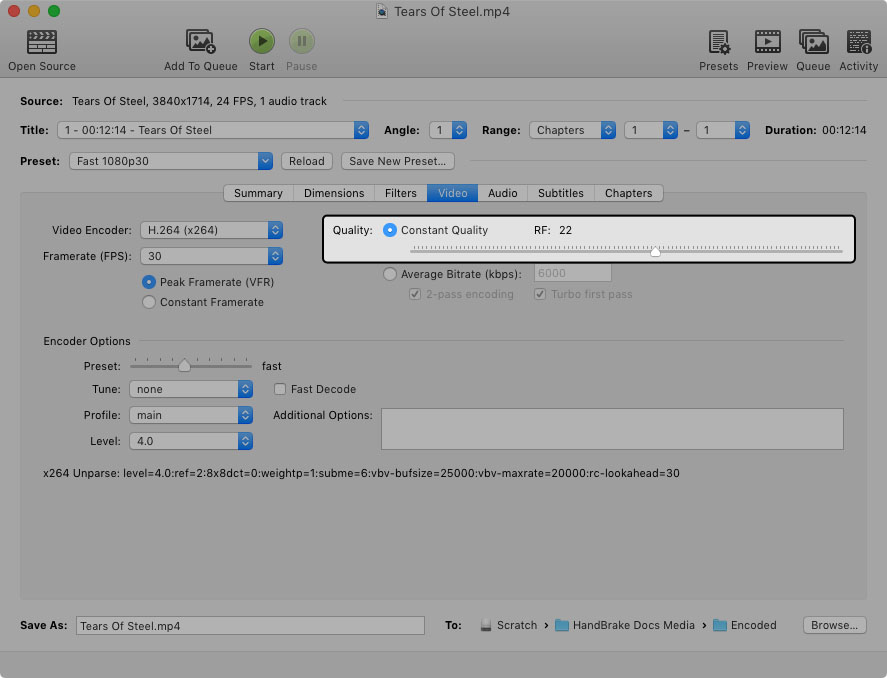
Credit: HandBrake
If you have unlimited hard drive space, you can absolutely drop that raw MKV file straight into your Plex library. However, most people want to save space. This is where HandBrake comes in.
HandBrake takes that massive file from MakeMKV and compresses it into a much smaller MP4 file. You load your extracted MKV file into HandBrake, select a preset like “HQ 480p30 Surround” for DVDs, and hit start. HandBrake will shrink your 6-gigabyte raw file down to a manageable 1 or 2 gigabytes with almost no noticeable drop in visual quality. It is an extra step, but it will save you hundreds of dollars in hard drive costs over the long run.
Naming Your Files So Plex Can Read Them
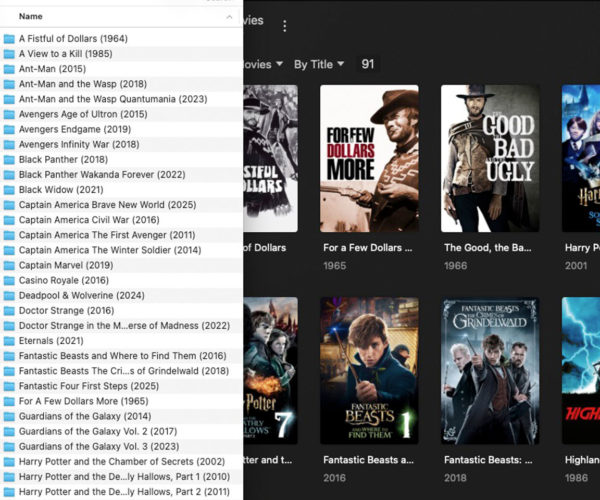
Once you have your final, compressed movie file, you cannot just name it whatever you want. For Plex to automatically download the correct movie posters and plot summaries, you have to follow a very specific naming convention.
For movies, you need to name the file with the exact title of the film followed by the release year in parentheses. For example, your file should look exactly like this: Jurassic Park (1993).mp4.
Television shows require a slightly different format. You need to include the show title, the season number, and the episode number using the “S01E01” format. An episode of The Office would be named: The Office (US) – S01E01 – Pilot.mp4. Getting this right from the very beginning will save you hours of frustrating cleanup later.
Ready for High Definition
Digitizing your standard definition DVDs is incredibly rewarding, but it is only the tip of the iceberg. In the next part of our series, we are going to look at the next tier of physical media. We will explain how to rip Blu-rays, discuss the storage tradeoffs, and explore why high-definition discs require a slightly different approach.